Most of your staff read work email on their own phones. Some open client files on a home laptop. That is normal, and it is fine. Right up until a phone is left in a cab or someone resigns on a Friday.
At that point you have one question: can you get your data off that device?
For most businesses, the honest answer is no. Not because the tools are missing. Microsoft 365 Business Premium includes them. They were just never switched on.
Two kinds of devices
Every device that touches your data falls into one of two buckets.
Company devices. You bought them. You own them. Laptops, desktops, and any phones the business pays for.
Personal devices. Your staff own them. Their iPhone, their Android, the laptop they use at the kitchen table. The industry calls this “bring your own device.”
The difference matters. You have every right to control a laptop you own. You have no right to control an employee’s personal phone. Their photos, texts, and banking apps are none of your business.
So the two buckets get two different levels of control.
Two levels of control
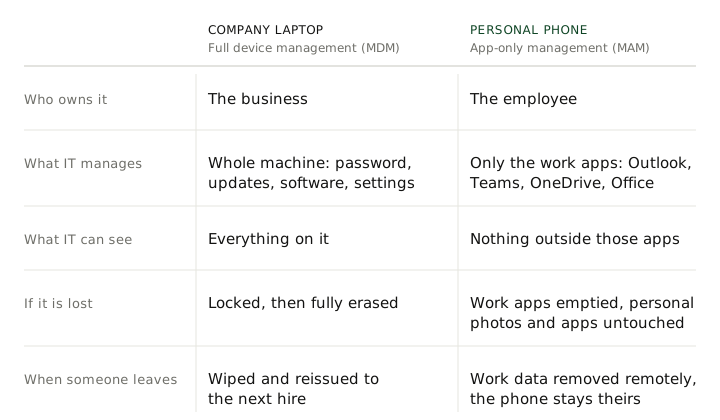
Full device management is for company devices. Your IT team manages the whole machine. They can require a password, force updates, install software, and block risky settings. If the laptop goes missing, they can lock it or erase it completely. Microsoft calls this mobile device management, or MDM.
App-only management is for personal devices. Your IT team manages only the work apps: Outlook, Teams, OneDrive, and the Office apps. Nothing else. They cannot see personal photos. They cannot read texts. They cannot track the phone. Microsoft calls this mobile application management, or MAM.
Think of it as a hotel safe. The employee owns the room. You own the safe inside it. Your data sits in the safe. You can lock it or empty it any time, from anywhere. You never touch the rest of the room.
This is the point most staff need to hear. Once they understand you only see the work apps, the pushback disappears.
Both levels come from the same tool, Intune, which is included in Business Premium. Business Basic and Standard do not include it, which is one of the reasons we do not build a tenant on those plans and call it secured.
The lost device
Here is what each setup does when a device disappears.
Lost company laptop. IT locks it remotely within minutes. If it does not turn up, they erase it. Every file, every login, gone. The thief gets a blank machine, and because the disk was encrypted from day one, nothing on it was readable in the meantime.
Lost personal phone. IT erases only the work apps and the data inside them. Outlook, Teams, and OneDrive are wiped clean. The employee’s photos, contacts, and personal apps are untouched. When they get a new phone, they sign in and everything comes back.
Without this in place, a lost phone means someone else has your inbox. If it had no PIN, they have it right now.
The departing employee
Off-boarding is the other moment this pays off.
Someone gives notice. Or someone is let go. Either way, they still have work email on a phone you do not own. You cannot ask for the phone. You should not have to ask them to delete anything.
With app-only management, IT removes work data from their personal device in one step. Access is cut. Files are pulled. It takes minutes, not an awkward email chain.
With full device management, the company laptop is locked the moment access ends. It gets wiped and reissued to the next hire.
Either way, the conversation is short. “Your access has been removed.” Done.
The leaks you never see
Lost devices and departures are the obvious risks. App-only management also closes the quiet ones.
It can stop staff from copying text out of a work email into a personal app. It can block saving a client file to a personal Dropbox. It can require a PIN or face scan every time a work app opens, the same unlock they already use for the phone itself, and the direction Microsoft is taking sign-in generally. It can refuse to run on a phone that has been jailbroken.
None of this stops anyone from working. It just keeps work data inside the work apps.
The honest limit: it protects data inside Microsoft’s apps. It cannot stop someone photographing a screen, and it does nothing for a phone that never had the work apps installed in the first place. That second gap is closed by a conditional access rule that refuses to hand mail or files to an unmanaged app at all, so the choice is managed or nothing, rather than managed or quietly unmanaged.
What this looks like for your staff
On a company laptop, almost nothing changes. Updates happen. A password is required. That is about it.
On a personal phone, they install the Microsoft apps and sign in with their work account. They may see a one-time prompt to set a PIN for work apps. After that, it feels the same as before.
Nobody installs a tracking app. Nobody hands over their phone. Nobody gives IT a look at their personal life.
The catch
All of this has to be set up before something goes wrong.
You cannot enroll a phone that is already lost. You cannot wipe work data from a device that was never managed. You cannot pull files from an employee who left last month.
The setup takes a few weeks. It needs a written policy, a clear split between company and personal devices, and a rollout that does not surprise anyone. The policy says what is allowed and what IT can see; the Intune settings are what make it true on a Tuesday afternoon, which is the difference between a policy and a control. Then it runs quietly in the background until the day you need it.
What a well-run device setup looks like
- Every device with company data is in a bucket, company or personal, and the list is written down.
- Company laptops are fully managed: disk encryption on, updates enforced, remote lock and wipe available.
- Personal phones are covered by app-only management: a PIN on the work apps, copy and save restrictions on, jailbroken phones refused.
- Access requires it. A conditional access rule means mail and files only open in a managed app or on a managed device, so nothing falls through by accident.
- Offboarding has the wipe as a step, done the same day access ends, alongside disabling the account and revoking its sessions.
- The wipe has been tested on a spare device, before anyone needed it.
- Staff were told in writing what IT can and cannot see on a personal phone.
Nothing on this list is a purchase. It is configuration of a product most businesses in this position already pay for every month.
Who is asking about this
If you carry cyber insurance, your renewal form likely asks whether you manage devices. If you work under HIPAA, FINRA, SOC 2, or NY DFS rules, your auditor will ask for proof. Client security questionnaires increasingly ask too, and devices are one of the four categories Microsoft Secure Score grades your tenant on.
“We have a policy” is not an answer. “Every device with our data is managed, and here is the report” is.
What to do next
Two questions to answer this week. If a member of staff lost their phone tonight, could anyone at your company remove the work email from it before morning? And when the last person left, who removed the company data from their personal devices, and how do you know?
If you already pay for Microsoft 365 Business Premium, you already own these tools. The question is whether they are turned on and set up properly.
We run this for our clients as part of Microsoft 365 management. We split devices into the right buckets, write the policy, and roll it out without a help-desk meltdown. Then we test the wipe so you know it works before you need it. Not sure where you stand? Get in touch and we will tell you in one call.